WebUI
Experiments managerment
Click the tab All experiments on the nav bar.

On the
All experimentspage, you can see all the experiments on your machine.

When you want to see more details about an experiment you could click the trial id, look that:

If has many experiments on the table, you can use the
filterbutton.

View summary page
Click the tab Overview.
On the overview tab, you can see the experiment information and status and the performance of
top trials.

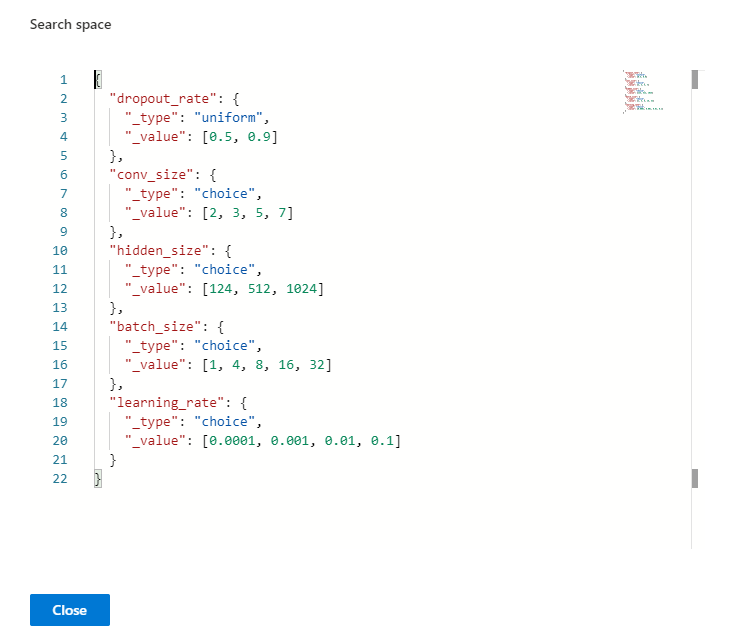
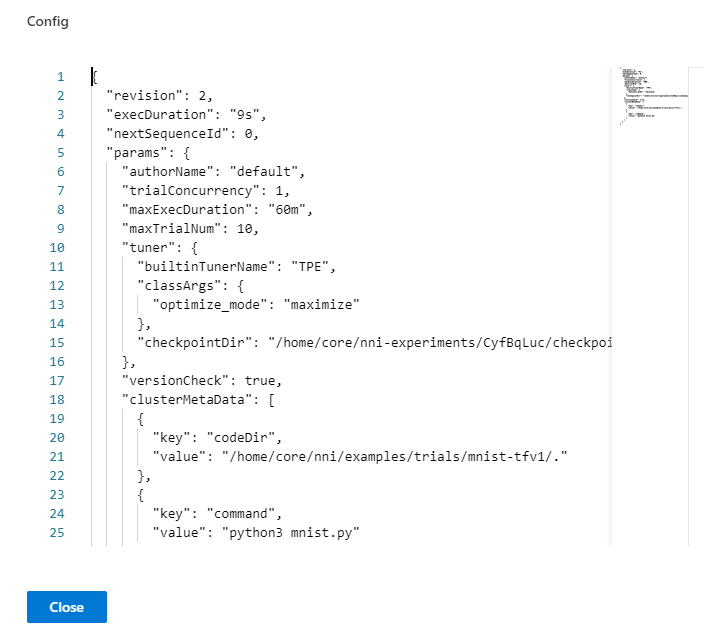
If you want to see experiment search space and config, please click the right button
Search spaceandConfig(when you hover on this button).Search space file:
Config file:
You can view and download
nni-manager/dispatcher log fileson here.


If your experiment has many trials, you can change the refresh interval here.

You can review and download the experiment results(
experiment config,trial messageandintermeidate metrics) when you click the buttonExperiment summary.

You can change some experiment configurations such as
maxExecDuration,maxTrialNumandtrial concurrencyon here.

You can click the icon to see specific error message and
nni-manager/dispatcher log filesby clickingLearn aboutlink.

You can click
Aboutto see the version and report any questions.
View job default metric
Click the tab
Default Metricto see the point graph of all trials. Hover to see its specific default metric and search space message.

Click the switch named
optimization curveto see the experiment’s optimization curve.

View hyper parameter
Click the tab Hyper Parameter to see the parallel graph.
You can
add/removeaxes and drag to swap axes on the chart.You can select the percentage to see top trials.

View Trial Duration
Click the tab Trial Duration to see the bar graph.

View Trial Intermediate Result Graph
Click the tab Intermediate Result to see the line graph.

The trial may have many intermediate results in the training process. In order to see the trend of some trials more clearly, we set a filtering function for the intermediate result graph.
You may find that these trials will get better or worse at an intermediate result. This indicates that it is an important and relevant intermediate result. To take a closer look at the point here, you need to enter its corresponding X-value at #Intermediate. Then input the range of metrics on this intermedia result. In the picture below, we choose the No. 4 intermediate result and set the range of metrics to 0.8-1.

View trials status
Click the tab Trials Detail to see the status of all trials. Specifically:
Trial detail: trial’s id, trial’s duration, start time, end time, status, accuracy, and search space file.

Support searching for a specific trial by its id, status, Trial No. and trial parameters.
Trial id:

Trial No.:

Trial status:

Trial parameters:
parameters whose type is choice:

parameters whose type is not choice:

The button named
Add columncan select which column to show on the table. If you run an experiment whose final result is a dict, you can see other keys in the table. You can choose the columnIntermediate countto watch the trial’s progress.

If you want to compare some trials, you can select them and then click
Compareto see the results.


Tensorboardplease refer doc.You can use the button named
Copy as pythonto copy the trial’s parameters.

You could see trial logs on the tab of
Log. There are three buttonsView trial log,View trial errorandView trial stdouton local mode. If you run on the OpenPAI or Kubeflow platform, you could see trial stdout and nfs log.
local mode:

OpenPAI, Kubeflow and other mode:

Intermediate Result Graph: you can see the default metric in this graph by clicking the intermediate button.

Kill: you can kill a job that status is running.

Customized trial: you can change this trial parameters and then submit it to the experiment. If you want to rerun a failed trial you could submit the same parameters to the experiment.

